Best way to do this
The more specific your question, the better the answer. Name a country or city, a time frame and the type of output you want (a table, a ranking, a short summary). Swap the parts in [brackets] in the examples below for your own sector, solution and geography:
Find live tenders: “Find open public tenders in [Germany] for [LED street lighting retrofits]. For each one, give the contracting authority, deadline, a one-line summary and the link.”
See who is winning: “Which companies have won public contracts for [EV charging infrastructure] in [Spain] over the past two years? Group them by contractor and list the awarding authorities.”
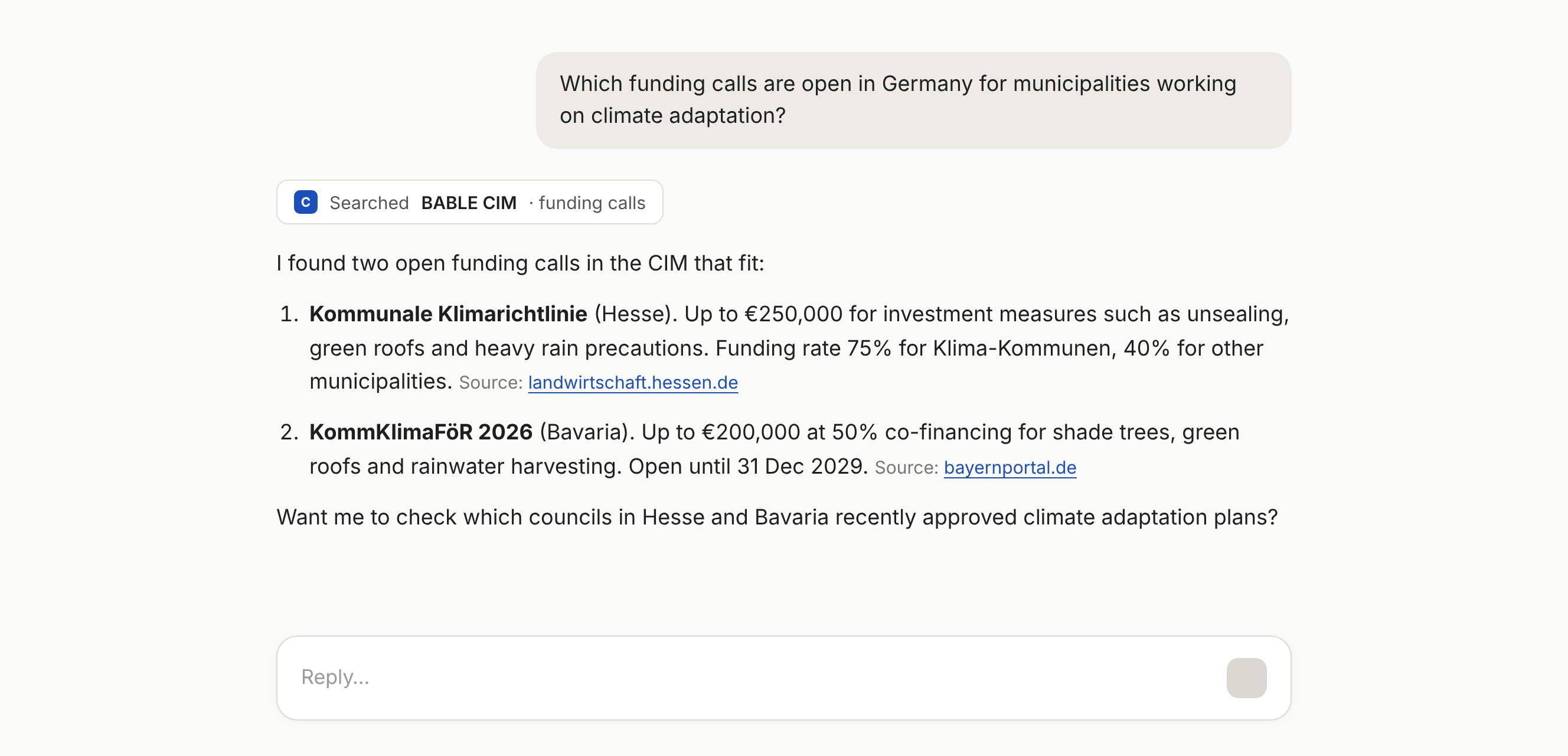
Match funding to a project: “What funding calls are currently open in [Germany] for [municipalities] working on [climate adaptation or nature-based solutions]? Summarise eligibility, maximum grant, co-financing rate and deadline for each.”
Spot demand before the tender: “Which city councils in [Germany] have approved plans related to [EV charging infrastructure] in the last 12 months? Go by the decision date, and summarise what was decided, the budget if mentioned, and what it could lead to.”
Prepare for a city meeting: “Give me a briefing on [Hamburg] for a first meeting: relevant strategies, budget priorities, recent council decisions, city-owned companies and partnerships related to [urban mobility].”
Find the right people: “Who are the relevant contacts at [the City of Munich] for [smart mobility or digitalisation]? Include name, role, department and contact details where available.”
Find reference projects: “Show me use cases where European cities implemented [smart parking]. Include the year, the outcomes, the companies involved and how it was funded.”
Build a target list: “I sell [short description of your solution]. Find 5 cities in [Germany] that combine a recent demand signal (council decision or strategy) with a relevant open tender or matching funding. Rank them and explain why each is a good lead.”
You don’t have to ask in English. Most CIM data is available in English, German, French, Spanish, Italian and Portuguese, so you can ask in the language you work in.
Always ask for source links, and open them before you act. The answers are based on public records in the CIM, but your assistant summarises them, so check the details (deadlines, requirements, amounts) yourself before you invest time in a bid.
What you can ask depends on your access level. Depending on your subscription, your connection covers all CIM data, or only tenders or only funding.
Common mistakes
Asking very broad questions like “find me opportunities”. Without a topic, a country and a timeframe, the answers stay generic.
Assuming the assistant used the CIM. Some assistants answer from general knowledge instead. If an answer has no CIM sources, ask it again to use the BABLE CIM connector.
Searching for very small towns and concluding there is nothing. Coverage is deepest for larger cities, so if results are thin, try the nearest bigger city or the whole country.
Asking for “recent” items without a date range. Say “in the last 12 months” or “published since [date]” to avoid older records.
Sharing your personal link with colleagues. Each person needs their own link, so ask your BABLE contact for an extra one.
Thinking the connection is broken when your link has expired. If the connector suddenly stops working, ask your BABLE contact for a new link and update it in your assistant’s connector settings.
If something doesn’t work
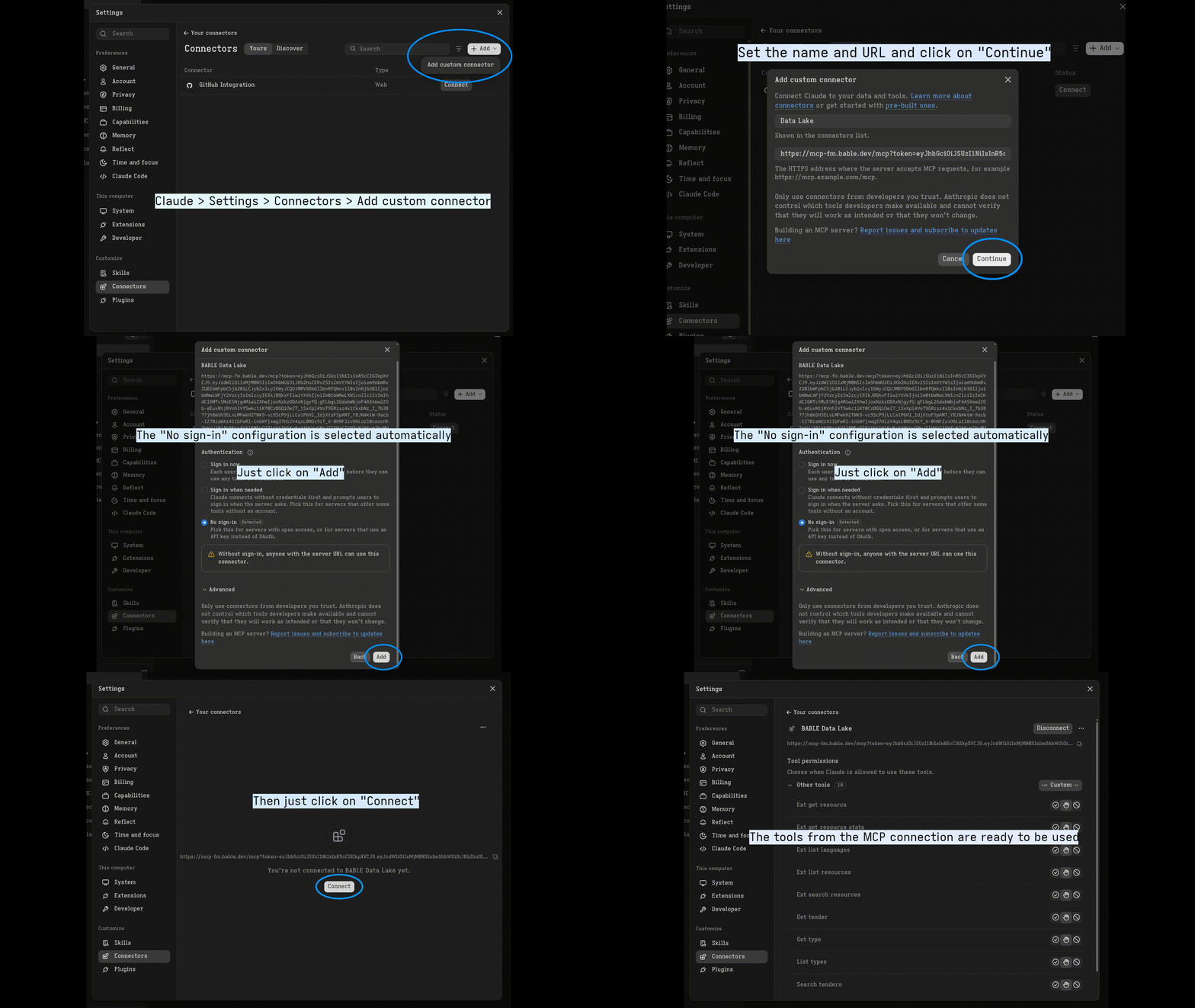
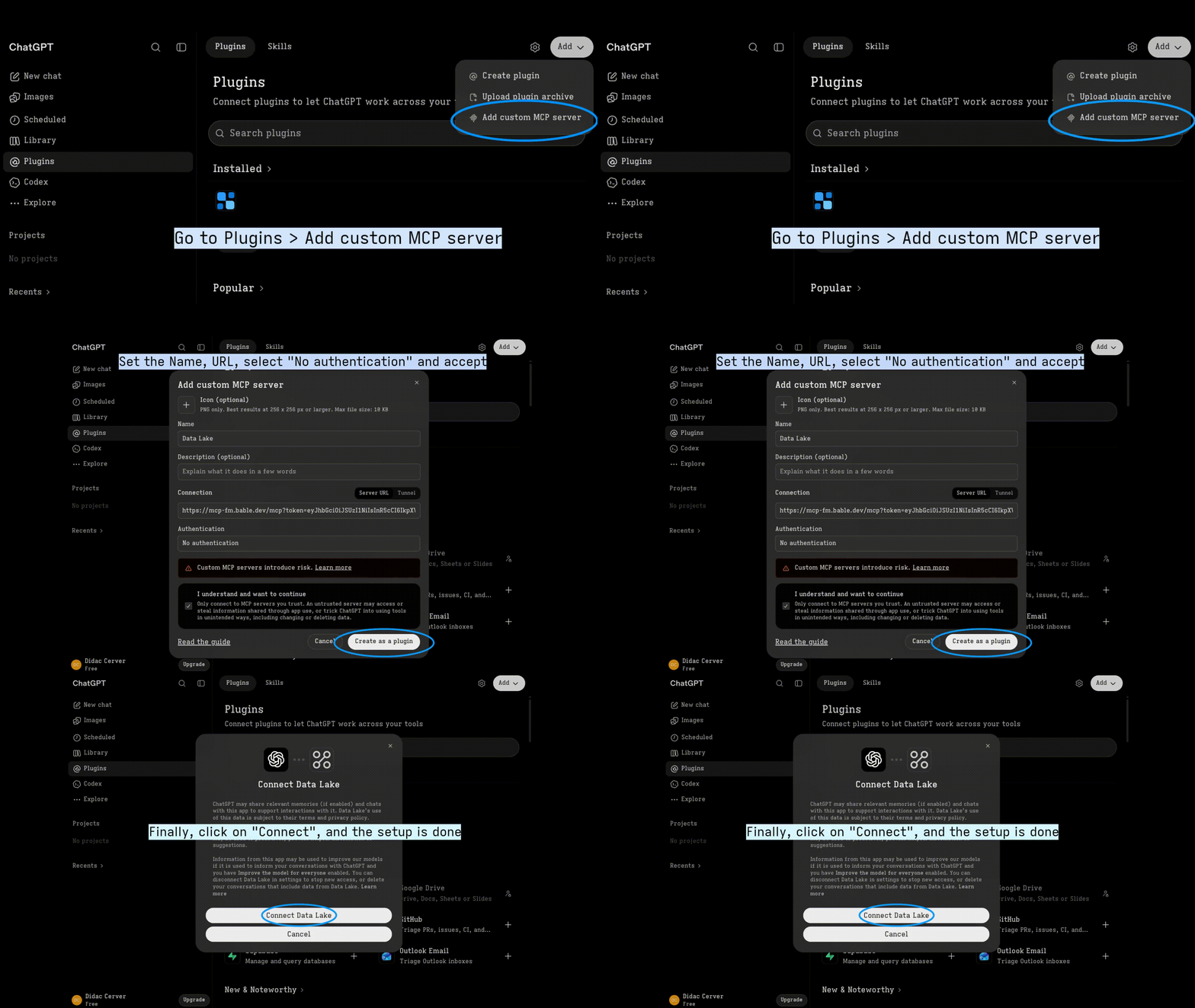
The connector shows an error when you add or connect it. Check that you pasted the full link, including the token at the end. If it still fails, send your BABLE contact a short description of the steps you took, the error message and, if possible, a screenshot.
The connector worked before but now fails. Your link has probably expired. Ask your BABLE contact for a new one and replace the URL in your connector settings.
You can’t find the option to add a custom connector. Your AI plan may not support it, or your company administrator may have switched it off. Check with your IT team or AI provider.
The answers don’t seem to use CIM data. Check that the connector is switched on for the conversation, and ask the assistant explicitly to use the BABLE CIM connector. If the answers still look wrong, contact your BABLE contact.
Some types of data return nothing. Your access level may not include that data (for example, tenders only). Run the Who am I tool to check your access level.
Data and security (for IT teams)
Read only. The connection gives read access to CIM data only. It cannot create, change or delete any data.
Personal and time-limited. Each link contains a personal access token linked to one named user and email address. Tokens expire after a limited time and can be revoked by BABLE.
Scoped access. Each token has one of three access levels: all CIM data, tender data only, or funding data only.
Server address. The connector uses the MCP server at https://mcp-fm.bable.dev/mcp. If your network or AI platform uses an allowlist, this host needs to be allowed.
Your AI provider. Your questions, and the CIM data the assistant retrieves to answer them, are processed by your AI assistant’s provider (for example Anthropic or OpenAI) under your agreement with them. Follow your company’s policy on AI tools.
What to do next
Use your assistant to build a shortlist, then open the most promising opportunities in the CIM to see the full record. Use filters and Signals to explore related opportunities in the same city or sector.